YouTube offers far more than the play button, upload flow and basic analytics dashboard most of us use. For marketers, creators and founders, some of its lesser-used features can make videos easier to navigate, simpler to repurpose and more effective at guiding viewers from one piece of content to the next.
This guide covers 10 YouTube features worth knowing, from Chapters and thumbnail A/B testing to audience retention, playlists, Trends and End Screens. These are practical YouTube tips for marketers and creators who want to get more from the platform without relying on paid advertising.
And you don’t need to master every YouTube feature to get more from the platform. The important factors are: which tools can make your content easier to find, easier to watch and more effective at moving viewers towards the next step?
1. Chapters and timestamps
What they are: Chapters divide videos into clearly labelled sections that viewers can jump to from the progress bar or description. These are marked by titled timestamps. Together, they improve content navigation, increase perceived value and help viewers find exactly what they need without leaving the video. For educational content, podcasts and interviews, they’re incredibly useful.
How to implement them:
- Upload your video.
- In YouTube Studio, select Content from the left-hand menu.
- Choose the video and open the details (click the pencil icon).
- Add timestamps in the Description (the first timestamp must be 00:00).
- Write each timestamp on a new line with a descriptive title.
- Save.
Note: For YouTube to display the chapters properly, you need at least three chapters, and each must be at least 10 seconds long.
Keep chapters focused on meaningful sections, not every topic change. Avoid vague titles such as “Part 1” and don’t split a natural conversation into too many tiny sections. Other common mistakes include chapters being too close together, breaking up a natural conversation too frequently, and forgetting to start at 00:00.
Why they’re worth using: Chapters reduce friction for viewers, who feel much more comfortable clicking into a long video when they can immediately see its structure. This makes a 60-minute video feel more approachable.
2. Video Clips in YouTube Studio
What it is: YouTube Studio’s Video Clips tool lets creators turn a key moment from a longer video or archived livestream into a new video on their channel, making it easier to repurpose interviews, podcasts, webinars and other long-form content. It’s a way to get more mileage from content you’ve already created. Plus, YouTube is also expanding the tool – it currently offers AI-powered suggested clips for eligible podcast videos, and YouTube has announced further expansion to Shorts and broader automatic clip suggestions in 2026.
Don’t confuse Video Clips with YouTube’s viewer-facing Clips feature. In April 2026, YouTube began phasing out the ability to create new viewer Clips and introduced Share at Timestamp as the primary way to share a specific moment in a video. Video Clips in Studio is different: it is a creator tool for turning existing content into a new video.
How to access it: In YouTube Studio, go to Content → Videos, open the video you want to repurpose, select Clips → Create video clip, then choose the section you want to extract and select Create Draft. You can select the passage from the transcript or set the start and end points on the timeline before creating the new video.
Why it’s worth knowing: For marketing purposes, it’s ideal for surfacing podcast highlights, strong customer testimonials, webinar insights, founder quotes and keynote moments without asking someone to commit to the full video.
Notes: For polished Shorts or social content, you’ll still want a proper editing workflow. At present, Video Clips creates 16:9 videos; YouTube has announced plans to expand the tool to Shorts later in 2026.
3. A/B testing thumbnails and titles
What it is: One of the most valuable additions YouTube has made for creators in recent years. YouTube Studio’s A/B testing tool lets creators test up to three different thumbnails, titles, or combinations of the two, so they can compare different versions instead of relying entirely on guesswork.
How to access it: In YouTube Studio, select Content and open the video you want to test. In the Title box or under Thumbnail, select A/B testing, then choose whether you want to test the title, thumbnail, or both. You can upload up to three versions and click Done to start the test. Results can take up to two weeks, and you can monitor an ongoing test under Analytics → Reach.
Why it’s worth knowing: Since the thumbnail plays such a critical role in whether someone chooses to click on a video, being able to test multiple versions helps marketers and creators use actual performance data to inform future decisions.
Notes: YouTube determines the winning version based on watch time, rather than simply which option generates the most clicks. A/B testing is currently available on desktop for eligible long-form videos and requires access to YouTube’s advanced features.
4. Frame-by-frame viewing
What it is: YouTube’s keyboard shortcuts let you move through a paused video one frame at a time. Press , to go back one frame and . to move forward one frame.
How to access it: On a computer, click the video player first. To examine a video frame by frame, pause it and press the comma key (,) to move backward or the full stop key (.) to move forward. You can also see YouTube’s full list of keyboard shortcuts by pressing Shift + ?.
Why it’s worth knowing: For editors and content creators, frame-by-frame viewing is particularly useful when checking cuts, transitions, subtitles, graphics, animation and timing.
5. Get more from YouTube Studio Analytics
What it is: YouTube Studio’s Analytics section gives you far more than a view count. For marketers and creators, the most useful reports include click-through rate (CTR), audience retention, traffic sources and returning viewers. They can help you understand not just how many people watched, but how they found the video, whether the opening held their attention and whether you’re building an audience over time.
Most marketers still optimise for views. The retention graph can tell you far more about whether the content held people’s attention. If people consistently leave at the same point, it may point to an issue with the storytelling, pacing or structure, not the thumbnail or title. If you see a significant drop-off, go back to that moment in the video and ask what changed. Was the pace slowing? Did the topic change? Was there a long introduction or call to action? These patterns can reveal what to change in your next video.
How to access it: In YouTube Studio, select Analytics from the left-hand menu. Use the Overview tab for a quick snapshot, then explore Reach, Engagement and Audience for more detail. To investigate a particular video, select it under Content, then choose Analytics.
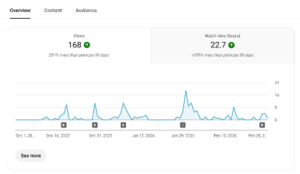
YouTube Studio Analytics – Overview tab (last 90 days)
For retention specifically, open the video’s Analytics → Engagement tab and look at Audience retention. YouTube shows how viewer numbers change throughout the video, helping you identify moments where people stay engaged or drop away.
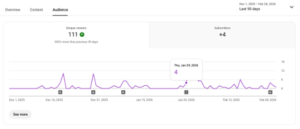
YouTube Studio Analytics – Audience tab (last 90 days)
Why it’s worth knowing: Most creators spend enormous amounts of time improving thumbnails and titles, but retention tells you whether the content itself actually delivered on the promise. It’s one of the few reports that directly shows where viewers lose interest, making it valuable not just for measuring past performance, but for improving future videos.
A useful workflow when reviewing a new video is:
- Click-through rate: Did people choose the video?
- Audience retention: Did the video hold their attention?
- Biggest drop-offs: Where did people lose interest?
- Traffic sources: Where are viewers actually coming from?
- Returning viewers: Are we building an audience or getting isolated views?
This sequence helps separate packaging problems from content problems.
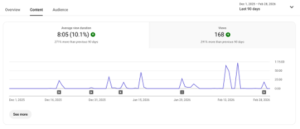
YouTube Studio Analytics – Content tab (last 90 days)
Note: Don’t confuse high view counts with marketing success. A video can attract thousands of views without reaching the people who matter to your business. For marketers and founders, the goal isn’t necessarily to make every video go viral; it’s to reach your ideal customer profile (ICP), build the right audience and ultimately contribute to conversions and sales.
6. Subtitles export
What it is: YouTube Studio lets creators download the caption track from a video, giving you a text-based version of the spoken content that can be repurposed in other formats.
How to access it: In YouTube Studio → Subtitles, select the video and click Edit beside the language you want. Select Options → Download subtitles.
Why it’s worth knowing: A cleaned-up transcript is one of the easiest ways to multiply the value of a single recording. Subtitles can be used for blog drafts, newsletters, LinkedIn posts, translations, Shorts captions, searchable transcripts or AI prompts.
Note: The quality of auto-generated captions has improved significantly, but I still recommend reviewing things such as names, technical terminology, punctuation or speaker changes. Small errors can completely change meaning, so keep a sharp eye on subtitles.
7. Playlists that guide the viewer journey
What it is: Playlists aren’t just folders for organising your videos. They’re a way to group related content and guide viewers from one useful video to the next. You can reorder videos manually and, where appropriate, designate a playlist as an official Series Playlist. This tells YouTube that the videos are a connected series and can help them be featured and recommended together. It isn’t suitable for every playlist, though; the videos should form a genuine series.
How to access it: In YouTube Studio, go to Content → Playlists and select the playlist you want to edit. You can add or remove videos and drag them into the order you want. When creating or editing a playlist, look for the option to set it as an official series playlist if the videos form a genuine series.
Why it’s worth knowing: Most people think playlists are just folders. But they’re actually a way to guide viewers from one video to the next and keep them inside your content ecosystem.
So instead of organising playlists around what you published (such as “Podcasts 2026” or “Marketing Videos”), organise them around what the viewer wants to learn next, such as “Getting Started”, “YouTube Strategy” or “Case Studies”. For educational or long-form content, the sequence can be just as important as the individual videos.
8. YouTube Trends (and Inspiration)
What it is: YouTube Studio’s Trends tab helps creators spot emerging formats, recurring themes, seasonal patterns and broader trends that could inspire new content. It’s useful for seeing what’s gaining attention, but it isn’t a crystal ball for predicting which videos will perform best. The point is not to copy what is already working, but to use trends as inspiration.
How to access it: In YouTube Studio → Analytics → Trends, you can explore current trends and content interests relevant to your audience. YouTube is continuing to update the Trends experience, so the exact interface and available insights may change over time.
You can also explore Inspiration in YouTube Studio, which can help you brainstorm content ideas and identify topics and opportunities based on what viewers are searching for and engaging with. Look for it under Content → Inspiration.
Why it’s worth knowing: Trends can help you spot opportunities before deciding what to make next, while Inspiration can help you turn those opportunities into specific content ideas. Use both alongside audience questions, customer conversations and your existing channel data rather than building an editorial calendar around trends alone.
Note: Some Trends insights are limited by country, language and device, so what you see may vary. Something gaining attention globally may have little relevance to your particular audience, so always consider whether a trend actually fits the people you’re trying to reach.
9. Playback speed
What it is: YouTube lets you change playback speed so you can watch videos faster or slower than normal. On desktop, there are keyboard shortcuts for this: < slows playback down and > speeds it up.
How to access it: On a computer, click the video player and press Shift + , (<) to slow playback or Shift + . (>) to speed it up. You can also change the speed manually by selecting Settings → Speed in the video player. On mobile, there aren’t equivalent keyboard shortcuts, but you can change playback speed by tapping Settings → Playback speed in the YouTube app.
Why it’s worth knowing: While the shortcuts may seem minor, they’re genuinely useful for marketers and editors. Beyond simply watching faster, playback speed can be useful when reviewing long podcasts, analysing competitor content, checking educational material or finding moments worth clipping.
10. End Screens and Cards
What it is: End Screens appear during the final 5–20 seconds of a video and can promote another video, playlist, channel, or subscription. Cards are clickable notifications that can appear during a video and point viewers towards another video, playlist or channel. Combined, they give you ways to guide viewers to what they should watch or do next.
How to access it: In YouTube Studio → Content, select the video you want to edit, then choose Editor → End screen or Info cards. You can choose what to promote and where it appears, then save your changes. Videos must be at least 25 seconds long to use an End Screen.
Why it’s worth knowing: Many businesses invest a lot of effort into producing a great video, but then miss the opportunity to guide viewers towards the next piece of content. End Screens and Cards let you recommend another video or playlist, or encourage viewers to subscribe, helping turn a single view into a longer viewing journey. Think of them as a simple way to turn one piece of content into a pathway through your channel, so that the viewer’s journey doesn’t end when the video does.
Note: Don’t overload a video with prompts. Use an End Screen or Card to offer the most relevant next step. For example, a beginner’s guide after an introductory video, or a case study after a product explainer. Remember, the goal is to give viewers an obvious reason to watch the next video.
Conclusion
The biggest opportunity here isn’t finding yet another YouTube feature to try. It’s connecting the features you already have into a better viewer journey. Chapters make long videos easier to navigate. Playlists give viewers somewhere useful to go next. Analytics show you what’s working. Subtitles give existing content a second life, while End Screens can turn one view into another.
You really don’t need to use every feature on YouTube. Start with the ones that solve a real problem for your audience or your workflow. Then use the data to see what makes a difference. That’s a much better strategy than chasing the next viral video.
- Social Media
Daniela Guerreiro
Daniela is a Video Director and Video Editor with 11 years of experience in video production and storytelling. She began her career at RTP, where she worked across several roles and developed a broad understanding of the production process. Alongside her television career, she has developed film projects and collaborated with companies across different industries, creating and editing content for a variety of platforms and audiences. Her work combines a strong editorial perspective with a hands-on approach to storytelling, from shaping ideas and narratives to directing and crafting the final edit.
YOUR RECOMMENDED Blog
More insights to fuel your growth
Dive deeper into strategies that transform businesses
What’s holding your growth back?
In under 5 minutes, you’ll get a custom scorecard on where your digital marketing stands - and what to fix next.