
Google search operators are built-in commands that filter and narrow your results. Here’s every one worth knowing in 2026.
Most people use Google the same way they did a decade ago: type words, scroll the results, and click a link. That works fine until it doesn’t, like when you’re three pages deep into irrelevant results, you need a specific file format, or you’re trying to find something you know exists but can’t surface in search results.
Google has a second layer most people never touch: search operators, the built-in tools and filtering options that transform it from a basic search bar into something considerably more precise. None of these require technical knowledge, they just require knowing that they exist.
One note before we start: some operators get quietly retired without announcement. cache: for example, was retired in 2024 when Google stopped showing cached pages by default. However, everything on this list has been verified to work in 2026.
1. Search an exact phrase on Google
This, the single most useful trick, is still the most underused. Wrapping your query in quotes tells Google to return only pages containing that exact sequence of words. That means no synonyms, no rephrasing, no broadening your query without asking you.
Try: “content strategy for B2B SaaS”
Wrapping your query in quotes tells Google to return only pages containing that exact sequence of words – no synonyms, no rephrasing, no broadening your query without asking you.
2. Search within a specific website using site:
Want to find every article on a competitor’s site about a topic, or check whether your own site has indexed a particular page? The site: operator does that.
Try: site:digivate.com google ads
Or for a quick indexation check: site:yourdomain.com/specific-page-url
If the page doesn’t appear, Google hasn’t indexed it, which is useful to know. The site: is one of the most practical Google search operators available – and one of the most underused outside of SEO teams.
This operator is also useful for a quick competitor content audit. Run site:competitor.com intitle:seo to see exactly which topics they’re covering and how often. If you’re running an SEO audit on your own site, it’s a fast way to spot pages that should be indexed but aren’t showing up. Our SEO audit guide covers what to do when you find them.
3. Find a specific file type in Google search
Looking for a PDF report, an Excel template, or a PowerPoint presentation? The filetype: operator pulls only results in that format.
Try: filetype:pdf “marketing strategy” site:.edu
This is particularly useful for research, given that university and government sites often publish detailed reports as PDFs that don’t surface easily in standard searches.
4. Exclude words from your Google search results
The minus operator removes results containing a specific word. It’s straightforward and consistently reliable.
Try: jaguar -car -xf
Or: python programming -snake
There must be no space between the minus sign and the word: -word works, – word doesn’t.
It works particularly well for research tasks. For example, if you’re looking for content marketing case studies but keep getting software tools in your results, “content marketing” case study -software -tool narrows it down fast. The same logic applies when you want to see where your brand appears in third-party coverage – exclude your own domain so only external mentions show up: “your brand” -site:yourdomain.com
5. Search for two things at once with OR
OR isn’t an acronym – it’s just the word “or”, capitalised. The capitalisation is what tells Google you’re giving it a choice between two terms rather than searching for the word itself.
Without OR, Google searches for everything you type. With OR, you’re telling it: find me pages that mention either this term or that one.
Try: marketing report OR marketing dashboard best practice
Google will return results containing either “marketing report” or “marketing dashboard”, so you catch both phrasings in one search instead of running two separate queries.
If “or” is in lowercase in your search query, it won’t work. marketing report or marketing dashboard treats “or” as a search term and returns muddier results. It has to be capitalised.
Where this is genuinely useful: when you’re not sure which version of a phrase a source might use. Different publications, industries, and regions often use different words for the same thing. OR lets you cover both without doubling your research time.
6. Find pages with a specific keyword in the title
Standard search matches keywords anywhere on a page. intitle: limits results to pages where your keyword appears in the headline, significantly improving the signal-to-noise ratio.
Try: intitle:“google ads audit”
Combine with site: for competitive research: site:competitor.com intitle:pricing
7. Search within a URL using inurl:
The inurl: operator finds pages where your keyword appears in the URL itself. It’s particularly useful for finding structured content, such as blog posts, resource hubs, category pages.
Try: inurl:blog digital marketing agency London
Or for guest post research: “write for us” inurl:blog digital marketing
8. What is Google Verbatim mode and when should you use it?
Verbatim mode tells Google to return results that match your exact search terms only – no autocorrections, no synonym swaps, no personalisation.
Verbatim mode disables all of that. According to Google’s own support documentation, it forces exact matches for your search terms without automatic corrections or synonym expansion.
Verbatim mode can be accessed via the Tools bar. If you’ve never seen the Tools bar before, here’s exactly where to look:
- Type any search query into Google and hit Enter
- Look directly below the search bar – you’ll see tabs for All, Images, News, etc.
- To the right of those tabs, click Tools
- A second row appears with two dropdowns – click the one that says All results
- Select Verbatim from the dropdown
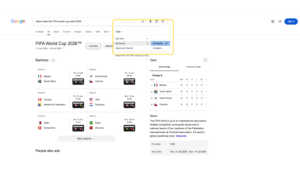
Google will now return results that match your exact search terms only. To go back to standard search, click All results again and select All results to reset it.
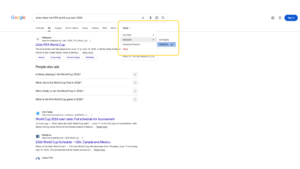
This is the feature most useful for research and fact-checking, particularly when you’re looking for a specific phrase or quote and Google keeps helpfully returning near-matches instead.
9. Filter Google search results by date
For any research where recency matters, the date filter is essential. After running a search, click Tools, then Any time, and set a custom range.
If you haven’t used this before, here’s where to find it:
- Run any search query and hit Enter
- Click Tools below the search bar
- A second row appears – click the dropdown that says Any time
- Choose from the preset options — past hour, day, week, month, or year – or click Custom range to set specific dates
- To sort by most recently published rather than most relevant, click the second dropdown next to Any time and select the most recent time option relevant to you.
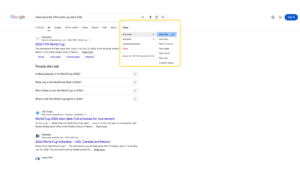
These are your options: past hour, past 24 hours, past week, past month, past year, or custom range – pretty straightforward. What most people don’t know is that you can also sort by date rather than relevance, which surfaces the most recently published pages first.
This is useful for finding the most current statistics, checking whether a news story has been updated, or seeing how coverage of a topic has evolved over time.
It’s also worth combining date filtering with the site: operator when you’re auditing your own content. site:yourdomain.com after:2024-01-01 surfaces everything you’ve published in a given window, which is useful for a content audit without needing to export from your CMS. If you’re auditing at a deeper level, our technical SEO audit guide covers how to layer Google Search Console data on top of what the date filter surfaces.
10. Google’s built-in calculator, converter, and timer
These aren’t search operators – they’re built-in tools that trigger directly from the search bar, and they’re faster than opening a separate app.
Calculator: type any equation directly into the search bar (e.g. (15% of 3400) * 12) and Google returns the result inline. Useful for quick margin calculations, VAT checks, or working out campaign budget splits without opening a spreadsheet.
Unit conversion: type 250 USD to GBP or 5km to miles and Google returns a live conversion widget. Google’s support documentation covers the full range of supported units – temperature, speed, currency, data, and more. If you’re working across international markets, the currency converter is faster than any browser extension.
Timer: type set a timer for 25 minutes and a countdown timer launches immediately above the results. There’s also a stopwatch tab. Useful for Pomodoro-style work sessions without opening a separate app.
11. Track a parcel directly from the Google search bar
Paste any major courier tracking number (FedEx, UPS, DHL, USPS, Royal Mail) directly into the Google search bar. Google will pull the tracking data from the courier’s site directly and display it inline – no need to open a separate tab.
It works across most major couriers without needing to know which carrier is handling the shipment. Google identifies it from the tracking number format and pulls the data directly. For ecommerce teams managing multiple fulfilment partners, it’s a useful shortcut during peak periods when you’re switching between carrier portals constantly.
12. Combine Google search operators for precision research
The real power comes from combining operators. A few practical combinations:
- Find competitors’ blog posts on a topic (excluding author archive pages): site:competitor.com intitle:seo -inurl:author
- Find PDF resources from educational institutions: filetype:pdf “content marketing” site:.edu
- Find guest post opportunities: “write for us” OR “guest post guidelines” inurl:blog digital marketing
- Find specific quotes: “exact quote you are looking for” -wikipedia
None of these are obscure developer tools. They’re features Google built into the product – and then buried under layers of AI-generated summaries and suggested searches. The people who use them save real time. The people who don’t, keep scrolling. These are the Google search tricks that still hold up in 2026 – most have worked for years, Google just never made them obvious.
If you want to go deeper, the free Google tools in your account are worth exploring too, as several of them do things you’re probably paying for elsewhere. For a full library of operator combinations, this 2026 operator reference covers the most useful workflows.
FAQs
Do Google search operators still work in 2026?
Most of the core operators do – site:, filetype:, intitle:, inurl:, exact phrase quotes, the minus operator, and OR are all working consistently. Some were retired: cache: was officially deprecated in 2024. A handful of others (like link:) were removed years earlier but still appear in outdated guides. This updated list from Ahrefs is reliable for 2026.
What is Google Verbatim mode and when should I use it?
Verbatim mode stops Google from automatically correcting spelling, swapping synonyms, and personalising results. Use it when you’re searching for a specific phrase, checking whether a particular piece of content exists, or doing research where you need exact matches rather than Google’s interpretation of what you meant.
Can I use multiple search operators at the same time?
Yes. Combining operators is where the real precision comes in. site:, filetype:, intitle:, and keyword exclusions can all be chained in a single query. The main thing to watch: no space after the colon (site: domain.com doesn’t work; site:domain.com works), and OR must be capitalised.
Does Google have a built-in calculator?
Yes – type any mathematical expression directly into the search bar and Google returns the result above the search results. It handles brackets, percentages, square roots, and more. The unit converter works the same way: type the conversion you need and a live widget appears inline.
How do I filter Google results by date?
Run a search, click Tools under the search bar, then click Any time to see the date options. You can filter by the past hour, day, week, month, or year, or set a custom date range. You can also switch from sorted by relevance to sorted by date, which surfaces the most recently published pages first.
Nicole Newman
With a decade of experience in digital and brand marketing, Nicole has worked across industries like FMCG, e-commerce, SaaS, and retail, crafting data-driven strategies that resonate with consumers. Her expertise in B2C marketing, consumer behaviour insights, and multi-channel campaigns enables her to drive meaningful brand engagement and business growth. Having worked both agency- and client-side, she thrives in fast-paced environments, leading teams to execute impactful digital campaigns that leave a lasting impression. When she’s not refining digital strategies, Nicole indulges her creative side—painting, crafting quirky home décor, or getting lost in a book by Spike Milligan or other Monty Python-esque humourists.
YOUR RECOMMENDED Blog
More insights to fuel your growth
Dive deeper into strategies that transform businesses
What’s holding your growth back?
In under 5 minutes, you’ll get a custom scorecard on where your digital marketing stands - and what to fix next.